
Time to complete: ~3 minutes | Who: All CRM 10 users | Frequency: Every Monday morning (or next available workday)
Why this matters: Refreshing your cache ensures you see the most up-to-date icons, menus, and UI in CRM 10 and prevents broken/missing visuals.
Step 1 – Open User Options
- Click your name in the upper right-hand corner of CRM 10.
- The User Options menu will open.
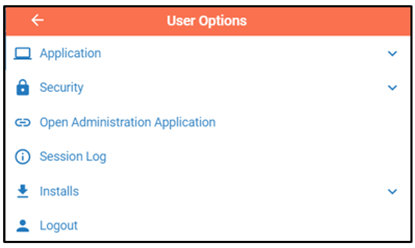
Step 2 – Open Application Settings
Click Application to expand the menu.
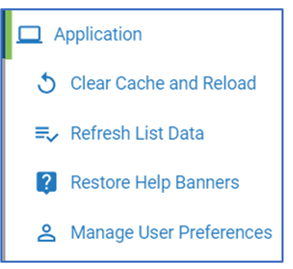 Example: Clear Cache and Reload is the first option in the Application menu.
Step 3 – Clear Cache and Reload
- Click Clear Cache and Reload.
- When prompted “Do you want to leave?”, click LEAVE.
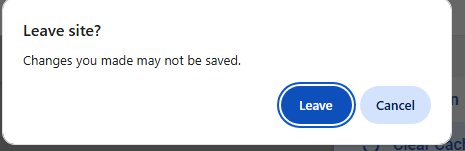
Warning: Clicking Stay cancels the refresh process.
Step 4 – Automatic Logout/Login
- CRM 10 will log you out and then log you back in automatically.
- Icons and interface elements will refresh to the latest version.
Tip: If icons still look wrong, press
CTRL + F5 (Windows) to force a full browser refresh.Related Options in the Application Menu
- Refresh List Data – Updates displayed records without logging out.
- Restore Help Banners – Brings back help tips you previously closed.
- Manage User Preferences – Adjust layout, colors, and other settings.
Maintenance window: Run this every Monday morning or the next available workday.
Last updated: