
Quick best practices, answers to common questions, and handy shortcuts for agents using CRM 10.
Must‑do Setup
- Connect to the VPN before using CRM 10. The app will not work without VPN due to PII protection.
- Use the correct site: Training (PAT/PATH) for practice; Production for live member data and activity fulfillment.


Security & Auto‑lock
- CRM 10 auto‑locks after 10 minutes of inactivity. Press F5 (or refresh Chrome) and enter your CRM password to get back in quickly.
- Always protect PII. Log out or lock your machine when stepping away.
Calling Best Practices
Tip: Choose the right script during a call
On the inbound call screen, the left side shows the CRM script (e.g., Member Engagement, Annual Review). You can switch scripts with the dropdown under the campaign area if needed.
Keep CRM 10 Fast
- Clear the CRM 10 cache weekly (best on Monday morning) to receive updates promptly.
- Use the in‑app Refresh icon to reload data without logging out when you make changes.
Sign‑in & CTI Fixes
- Username is first initial + last name (e.g.,
JPublic,KMeredith). - Initial CRM 10 password = your VPN password (unless you set a custom CRM password).
- Open Duo on your phone and enter the six‑digit passcode within 30 seconds.
Daily Planner Cheatsheet
Use the Daily Planner as your home base. Key widgets include: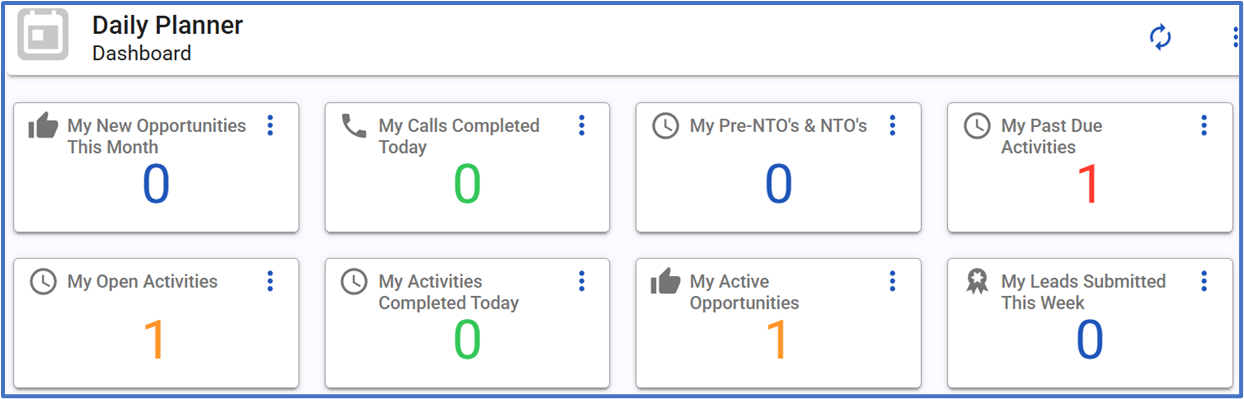
- New opportunities (resets monthly)
- Calls completed today
- Pre‑NTOs & NTOs
- Past due
- Open activities
- Activities completed today
- Active opportunities
- Leads submitted each week
Member Profile Power‑tips
- Verify DOB, Phones, Email, SSN, Address, CU, Employer, Occupation — these feed lead creation and LG forms.
- From Policy Info, review active/inactive policies, riders, beneficiaries, payment history, and status.
- Use last‑4 SSN copy to quickly search in LG.
Resale opportunities
If you see inactive or older no‑cost benefit policies, review who was covered and what coverage existed to identify upgrade/resale opportunities.
Activities: ARN + PEM
On calls, CRM 10 creates the activity for you. To finish an activity, complete ARN:
- Action – How was the call received / what was requested?
- Result – Outcome (e.g., contacted, sent to carrier).
- Notes – Specific, helpful details (aim for quality, not just placeholders).
For member policy requests sent to carriers (e.g., change of beneficiary), add PEM to notes:
- Policy number(s)
- Email (primary)
- Mailing address (primary)
Warm Transfers
From the black nav bar during a call, choose Transfer Inside (PFP) or Transfer Outside (Carriers). After placing the transfer, prefer Connect Customer Conference for a warm handoff.
- Cancel Transfer Call – stop and return to member
- Connect Customer Conference – warm transfer (recommended)
- Disconnect & Complete Transfer – cold transfer (not recommended)
Referrals & Follow‑ups
- Use the Referrals icon (clipboard) to create a referral; then schedule a call back from the referral’s profile.
- To schedule follow‑ups outside a live call: open member profile → Contact Details → New Activity → set date/time.
- For scheduled callbacks during a live call, use the Scheduled Call Back button on the call screen.
Icon Glossary (quick link)
See meanings for Clear Cache, Refresh, Edit, Referrals, Consents, CU Product Request, Next Call, Save Notes Template, and more in the CRM ICONS Glossary (end of the manual).
Quick FAQ
Why does CRM 10 say my phone credentials are incorrect?
Your CTI password likely doesn’t match your current VPN password. Open the CTI drawer from the prompt, update the password, and click Save.
What if I can’t find a member during a CCC call?
Create a new contact with the member’s correct info (name, CU, phone). Don’t leave the CU’s number on the profile.
How do I generate more precise, useful notes?
Be specific (e.g., “Abigail, 43, smoker, teacher at Lincoln HS; call back PM”) and reuse templates to save time while keeping quality high.
© 2025 PFP Services – CRM 10