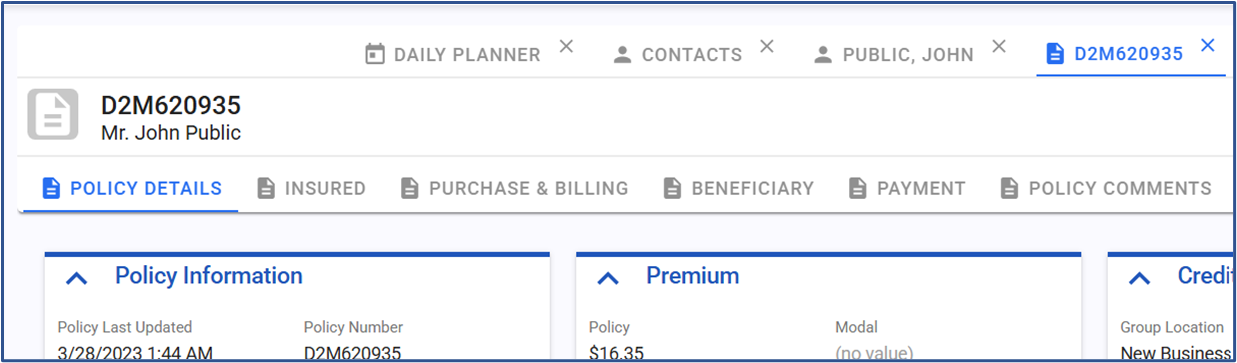
Regular policy reviews help surface cross-sell opportunities, improve retention, and ensure members have the right coverage. Use this guide to navigate the Policy Info area, interpret key fields, and translate insights into action.
Quick Navigation
- Accessing Policy Information
- Understanding Policy Status
- Viewing Detailed Policy Information
- Best Practices During a Review
- Returning to the Member Profile
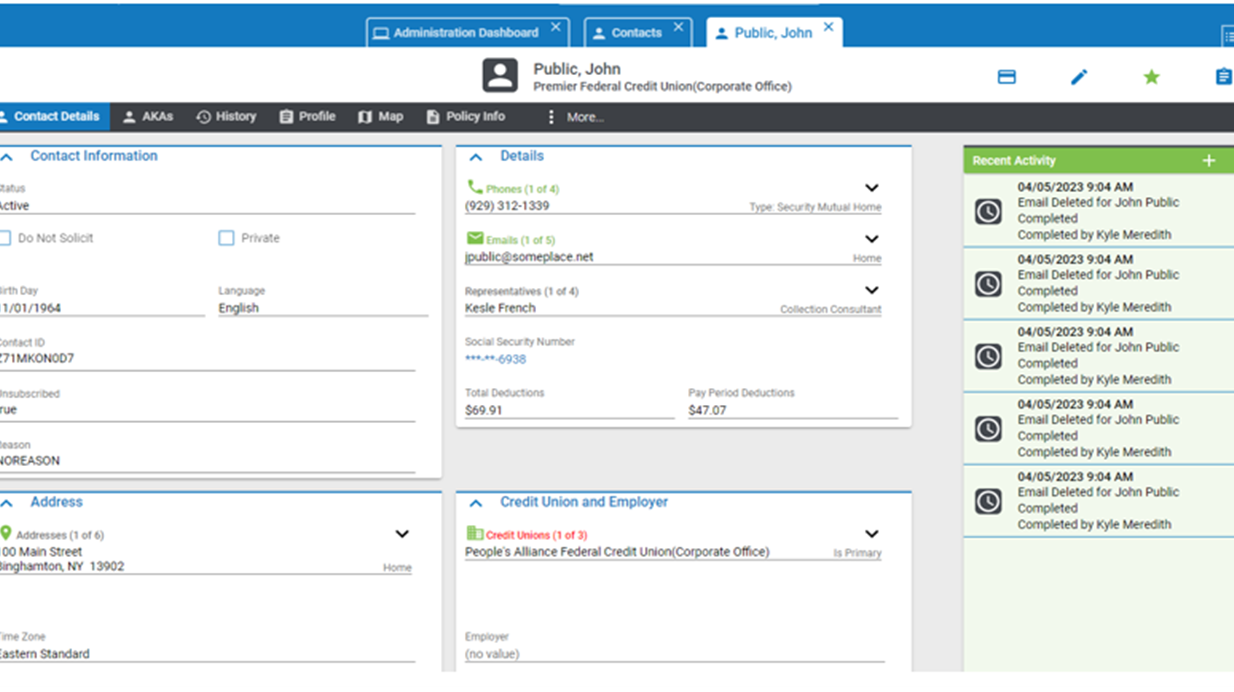
1) Accessing Policy Information
- From the member’s Contact Details page, click the black-bar tab Policy Info.
Understanding Policy Status
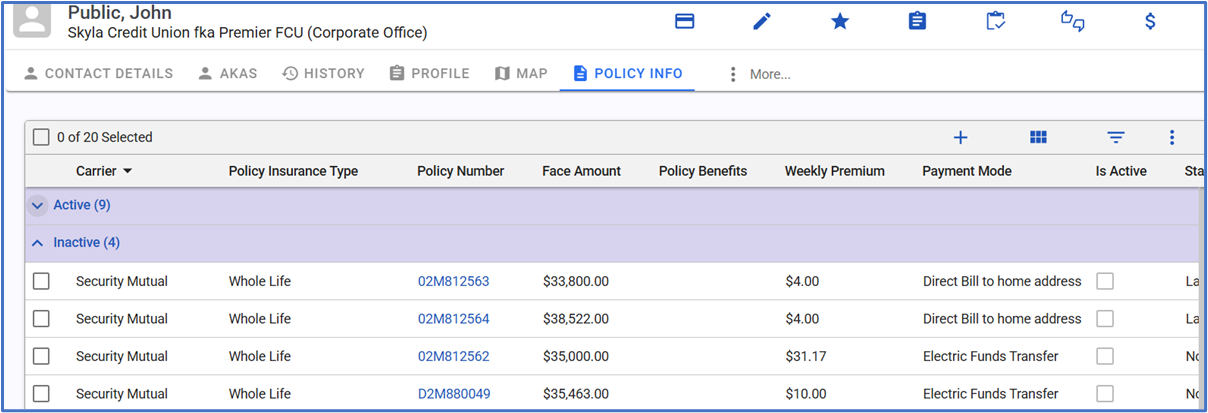
- Active: In force and premium-paying.
- Inactive: Lapsed/canceled. Review prior coverage and consider a targeted resale conversation.
- No‑Cost Benefit: Discontinued promotional accident/hospitalization coverage. Great entry point to discuss paid protection options.
Tip: Click a blue Policy Number to open a new tab-like view for deeper details (beneficiaries, payment, riders).
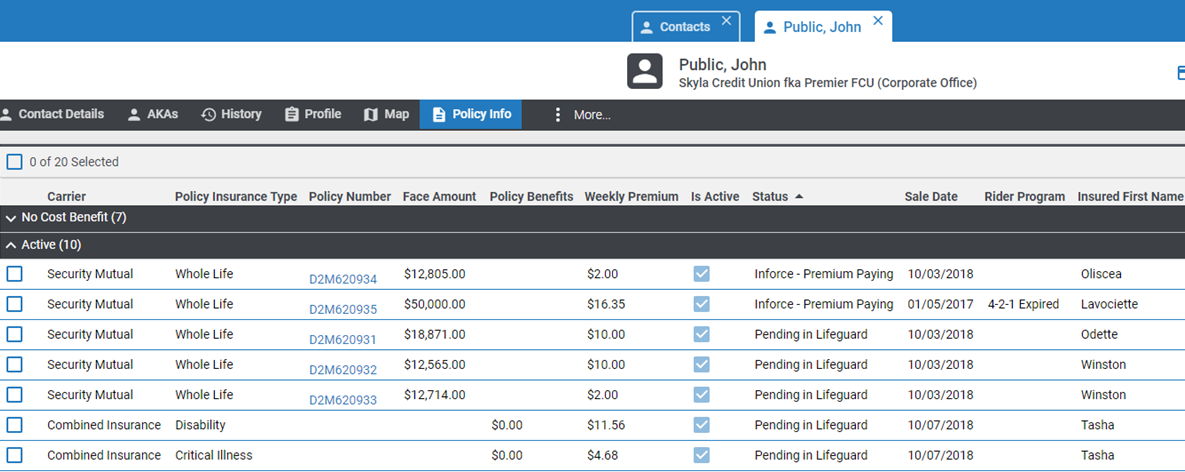
2) Review fields (left → right):
- Active Policies
- Policy Type & Carrier
- Policy Number (clickable link)
- Face Amount
- Benefits
- Weekly Premium
- Status (Active, Inactive, No‑Cost Benefit)
- Sale Date
- Insured’s Name
3) Viewing Detailed Policy Information
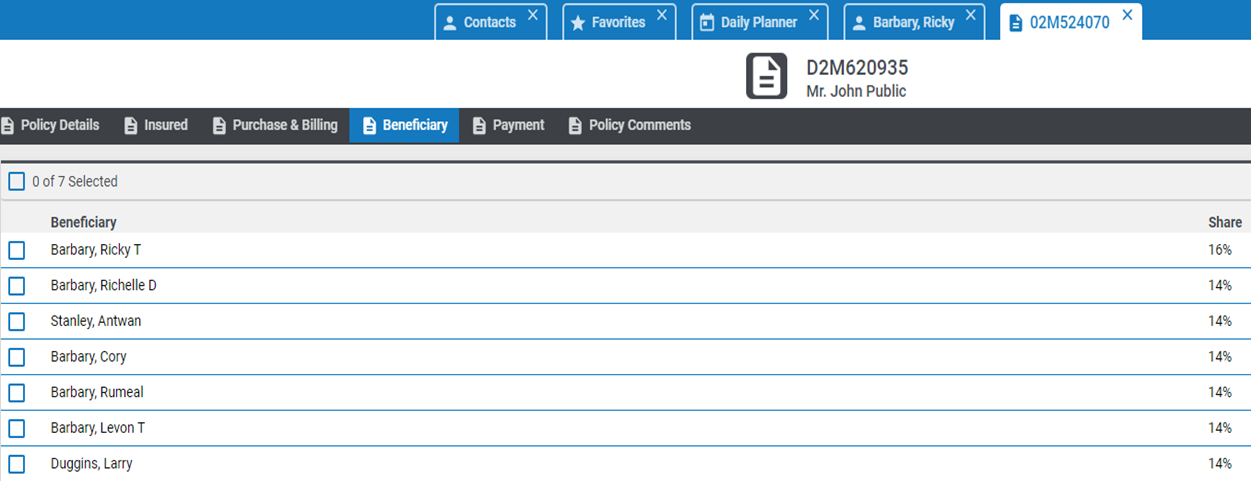
Beneficiary Tab
- Shows all beneficiaries and their percentage allocations.
- Use relationships to guide questions and uncover needs (e.g., “Who is Ricky to you?”) for family coverage opportunities.
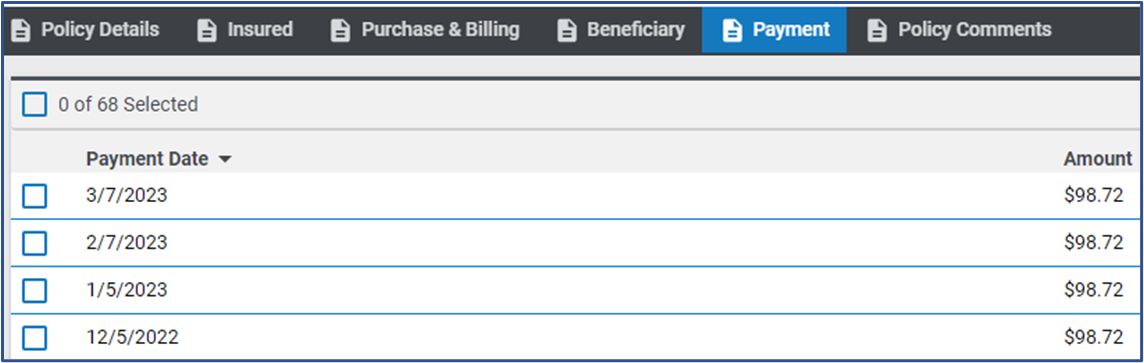
Payment Tab
- View payment dates/history; identify issues to address retention concerns.
- When adding new coverage, align billing dates with existing schedules to reduce friction.
Riders Tab
- Confirm current riders and whether they still fit the member’s needs.
Important: Agents cannot change beneficiaries directly. Submit a Change of Beneficiary activity and include P.E.M.: Policy Number, Email, and Mailing Address.
4) Best Practices During a Review
- Verify Member Data: DOB, SSN, email, phone, mailing address, credit union, employer, occupation.
- Spot Opportunity Signals: Inactive or no‑cost benefit history often indicates easy re‑entry points.
- Leverage Family Details: Beneficiary listings reveal household gaps and prospecting paths.
- Align Payments: Match new policy billing to proven dates to improve persistency.
- Document Thoroughly: Capture findings/recommendations in Activity Notes (use templates where helpful).
5) Returning to the Member Profile
- Close the open policy tab using the “x” (works like a browser tab) to return to the profile.
- You can open multiple policies, then close each as you finish the review.