
Important: Agents cannot directly change a member’s beneficiary inside CRM 10. Your role is to complete the proper Change of Beneficiary activity so the carrier (SML/CICA) can process and send the member the correct paperwork.
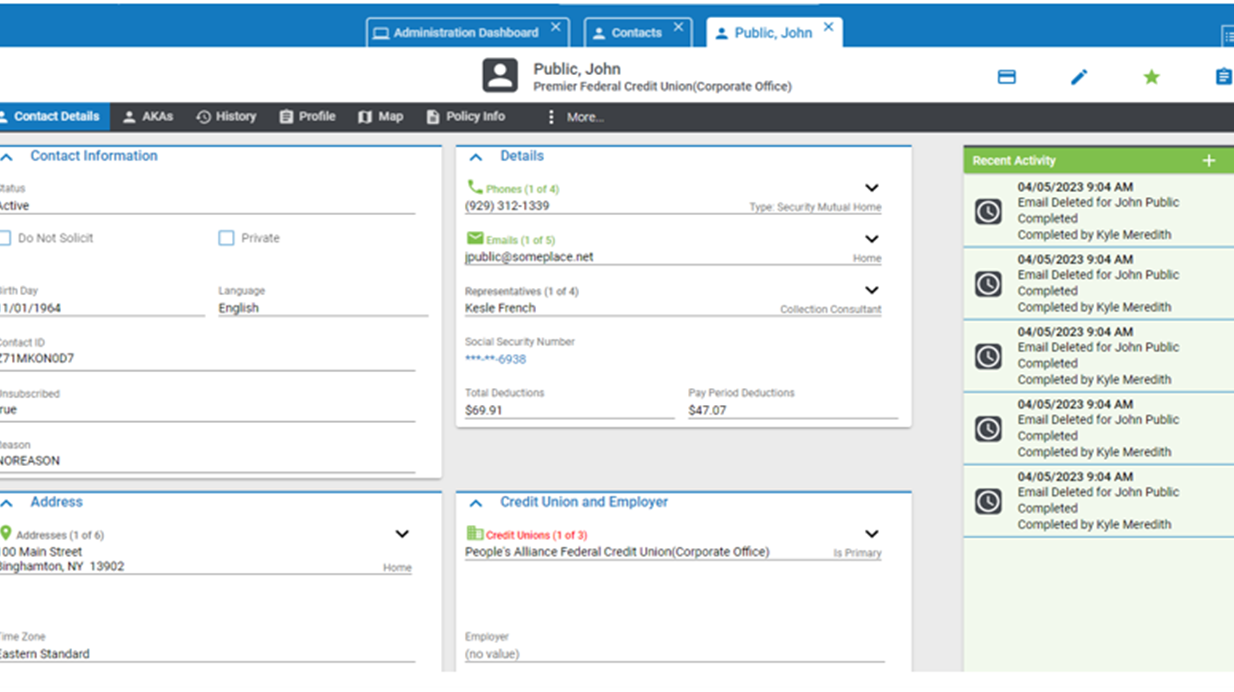 Step 1: Open the Member Profile
- Search for the member in CRM 10 using their name, SSN, or other identifying information.
- From their profile, navigate to the Policy Info tab in the black bar at the top.
- Click the blue hyperlink for the policy that needs a beneficiary change. This will open the policy details.
Step 2: Start the Activity
- On the member’s profile, go to the Recent Activity Section and click the (+) icon.
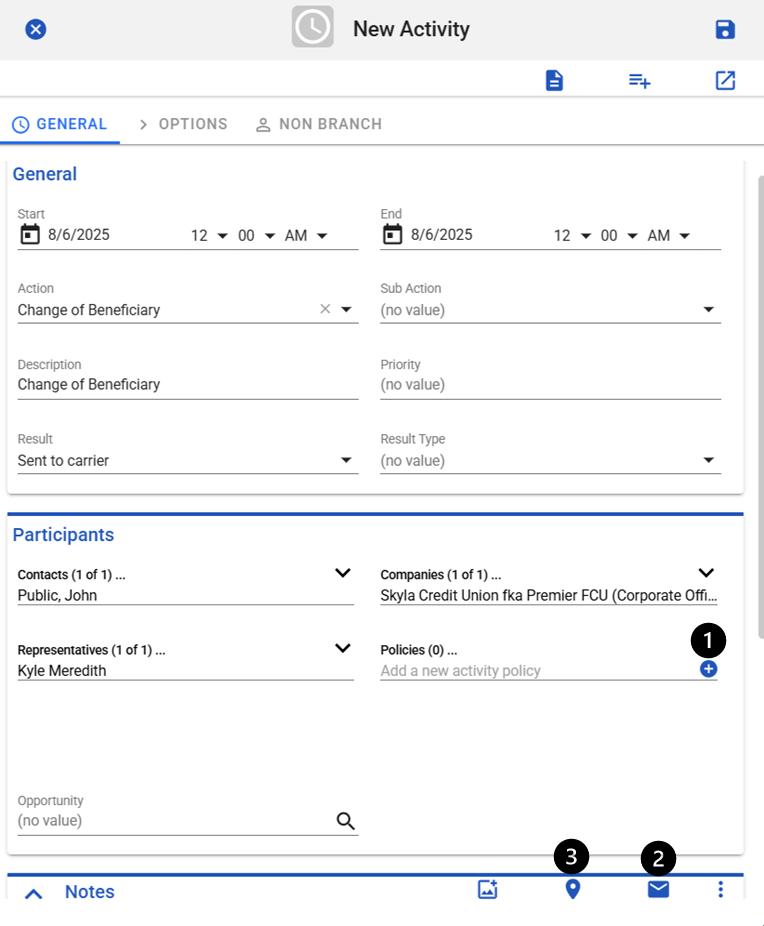
- Select Change of Beneficiary from the Action options.
- Fill in the Action, Result, and Notes (ARN) as you would for any activity.
Step 3: Add Policy, Email, and Mailing Address (PEM)
For this request to be valid, you must include the member’s:
- 1. Policy Number: Click the (+) icon next to policies. Choose the correct policy and confirm with the checkmark.
- 2. Email Address: Click the email icon to automatically insert the member’s primary email into the notes.
- 3. Mailing Address: Click the mailing address icon to automatically insert the member’s address into the notes.
This ensures the carrier has all details needed to send out the beneficiary change form.
Step 4: Complete the Notes
Your notes must always include:
- Your full name and extension
- Policy number(s)
- Member’s email and mailing address (PEM)
- Any other relevant details discussed with the member
Example of completed notes:
Agent: John Public, Ext. 4567
Policy: 123456789
Email: member@email.com
Mailing Address: 123 Main St, City, State ZIP
Notes: Member requested to change primary beneficiary from spouse to daughter.
Step 5: Save and Send
Click the Save icon in the upper right-hand corner. Once saved at the end of the day CRM collects all requests from all agents and Sends the requests to the carrier for processing. This concludes what you the agent must do for the member in regards to correctly submitting a change request.
Once submitted, the carrier will handle sending and processing the official Change of Beneficiary form.
Quick Tips
- Always confirm you are on the correct policy number before creating the request.
- Double-check that both email and mailing address are inserted into the notes.
- Never tell the member you can change the beneficiary yourself — only that you will submit the request.