
Every workday should begin with a consistent software start-up process. Following this technology checklist to ensure you are ready to sell, serve members, and stay compliant.
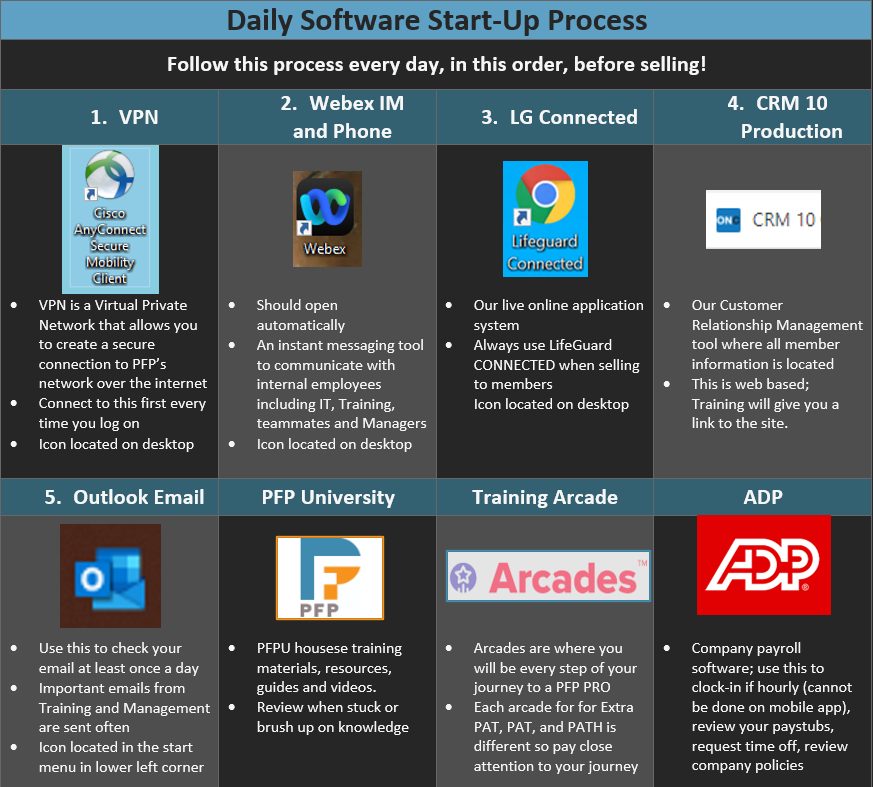
Step 1: Connect to VPN
- Locate the Cisco AnyConnect Secure Client on your desktop.

- Select PFP-AnyConnect and click Connect.
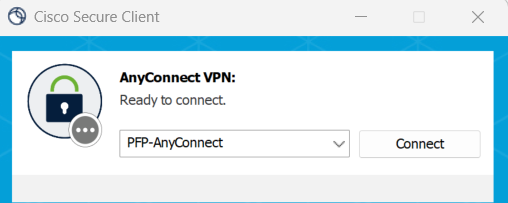
- Enter your VPN password.
- Open your cell phone and approve the Duo push notification within 7 seconds.
- Wait for the ✅ green check mark confirming your VPN is active.
For more help with the VPN click here: insert VPN walkthrough link
Step 2: Open Webex
- Launch Webex from your desktop.

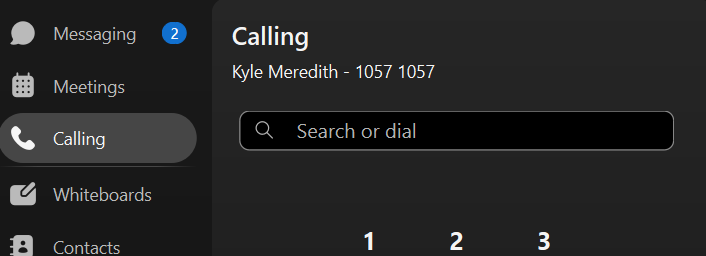
- Confirm your extension is showing under the dial pad. If not, log out and back in.
- Use Webex for calls, chat with teammates, and video meetings throughout the day.
For more help with Webex click here: insert Webex Walkthrough link
Step 3: Lifeguard (LG) 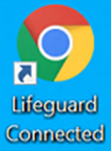
Click the LifeGuard Connected icon on your desktop → enter your credentials when prompted.
- Username: first initial + last name (ex: JPublic).
- Password: your VPN password (unless you’ve reset it)
- Confirm version date at login matches the most recent Tuesday.
Step 4: Log into CRM 10 
- Navigate to CRM 10 Production Site.
- Username: first initial + last name (ex: JPublic).
- Password: your VPN password (unless you’ve reset it).
- Enter the 6-digit Duo code from your phone within 30 seconds.
- If prompted for CTI password, re-enter your updated VPN password and click Save.
Step 5: Open Outlook
- Check Outlook for important updates from IT, Training, and Management.
- Ensure you click Outlook after the VPN or your email will not work correctly.
Step 6: Verify Your Tools ✅
- VPN is connected and green check is showing.
- Webex phone and IM are running properly.
- LG is synced and running the latest version.
- CRM 10 is open and the cache is cleared (Monday only).
- Email and PFPU are open for reference.
Step 7: Syncing
CRM 10
- Every Monday, clear your CRM 10 cache before starting work. It will automatically log you back in after doing the process. For additional help click here: insert CRM clear cache link
LG
- Every Wednesday morning, run the LG Sync tool on your desktop to update with the latest SML code.
- Download and run the update, select Get New Code, and let it finish.
- Restart your computer when prompted to apply the update.
Pro Tips
- Restart your computer daily after your shift. Leave it plugged in and open so IT can push updates overnight.
- Never use personal cell phones for member calls — CRM 10 and Webex are required to ensure compliance and call recording.
- Clear cache weekly and sync LG weekly to avoid sales or compliance issues.