
What is a SEG Log?
A SEG (Select Employer Group) Log is your official record of everything that happens during a SEG visit. It tracks members you spoke with, Credit Union products they showed interest in, premiums written, raffle winners, and your site feedback.
Think of it as both your attendance sheet and your results tracker. We want to celebrate when things are going well and pivot when we need to if a site isn't producing the results that we want.
Why It Matters
- Accurate Reporting – Logs prove our impact to both the CU and site leadership.
- Credit for Work – Ensures you get credit for premiums and applications written.
- Follow-Up – Members added to logs flow into CRM for future outreach.
- CU Partnership – Timely logs show professionalism and build trust with partners.
- Compliance – Protects both you and the CU by documenting activity correctly.
How to Complete a SEG Log
Step 0: Perform regularly scheduled Life Guard Sync
- When Life Guard Sync is performed agent's schedule and logs will be synced to where when they show up the day of the SEG site the Log will already have been created and waiting for them to use.
Step 1: Open Life Guard Connected on SEG Day
- If Seg is scheduled by BD → The log will already appear for you to open up.
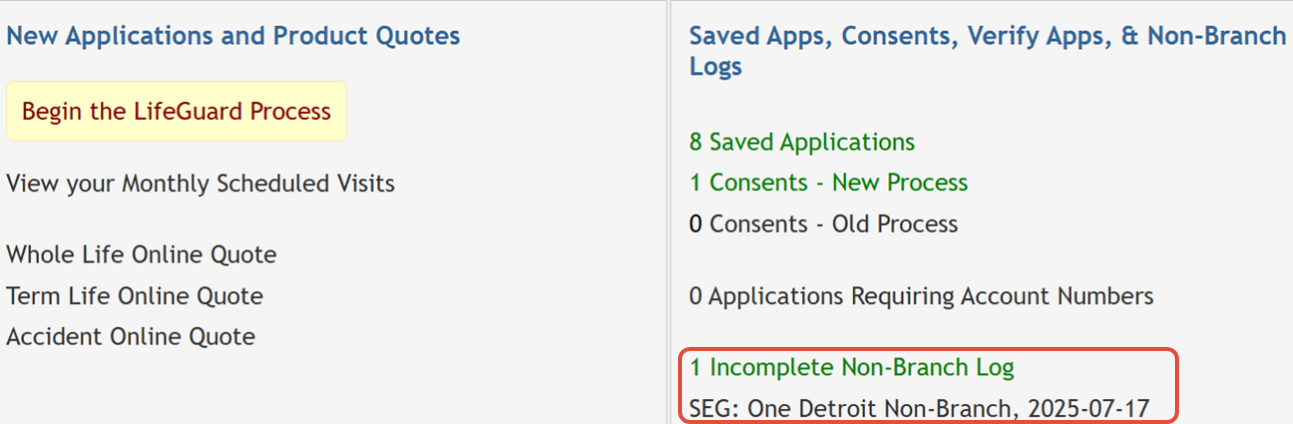
- If it’s a “pop-in” or no log appears → Create a Non-Branch Log and enter CU, site name, address, city, state, and zip.
Looking at this example image below. It would still be incorrect. What is missing?
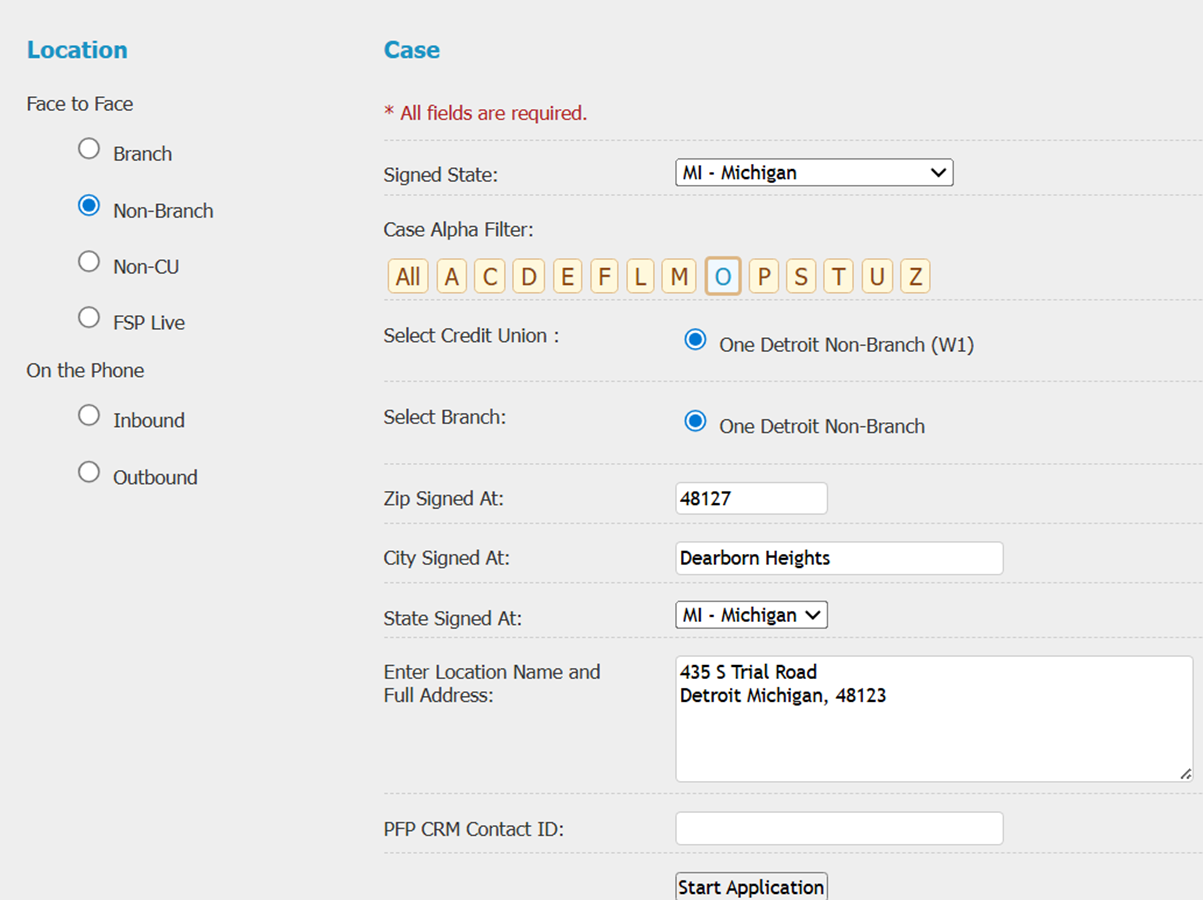
If you said the site name you are right! We have the physical address of Detroit MI but what is the name of the SEG location?
What if the address had been a hospital with 4 different wings that are all SEG locations? It would be impossible for us to know which one these members are associate with which is why accurate record keeping is VITAL.
Step 2: Add Members to the log via any of the three methods
- Search – Look up existing CU members (SSN or fuzzy search) and auto-updates the log .
- New Non Branch Entry – Add a new contact manually who joined the CU or requested info.
- Next – Go directly to product selection; the application auto-updates the log.
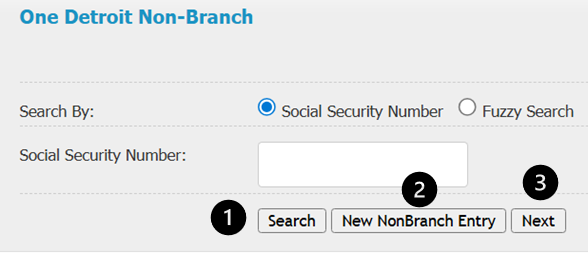
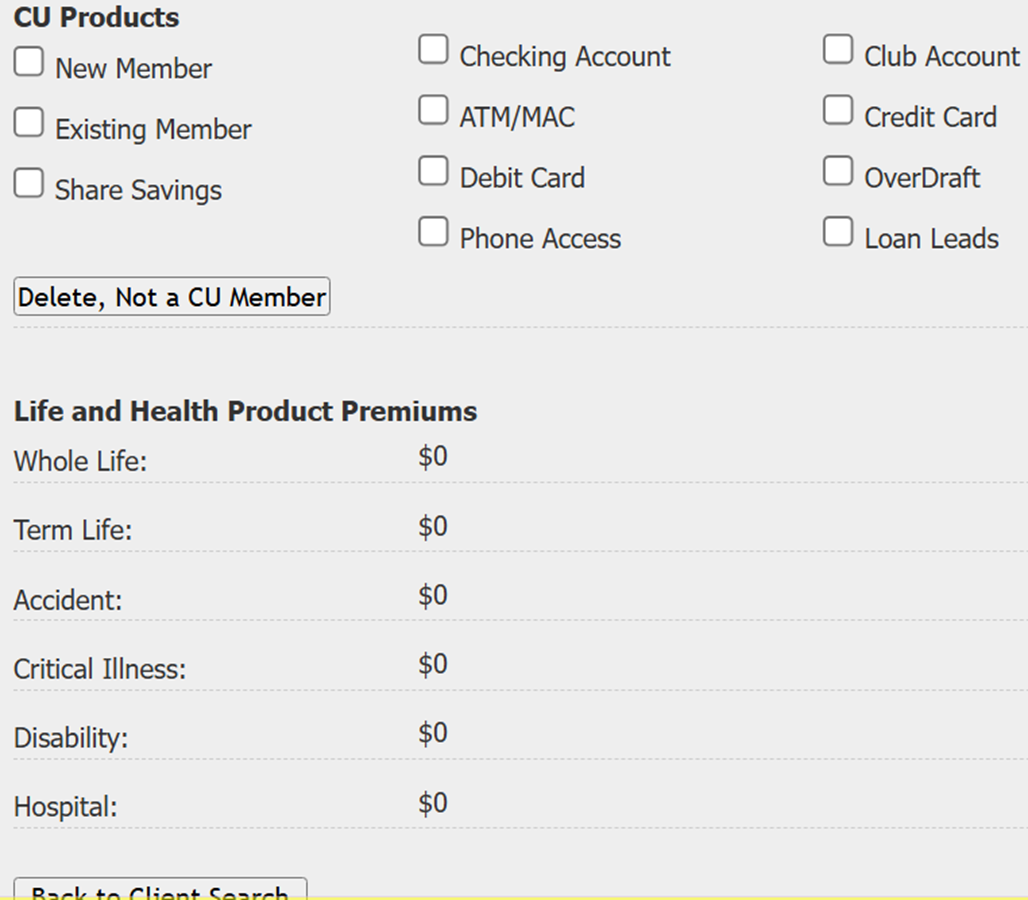
Step 3: Record Actions What did you do/speak on?
- CU Products – Did they join the CU or request a loan/card?
- FSP Products – Did they apply for Accident, WL, CI, etc. update automatically as apps are written.
- Premiums – Premiums update automatically as apps are written.
Step 4: Finalize the Log
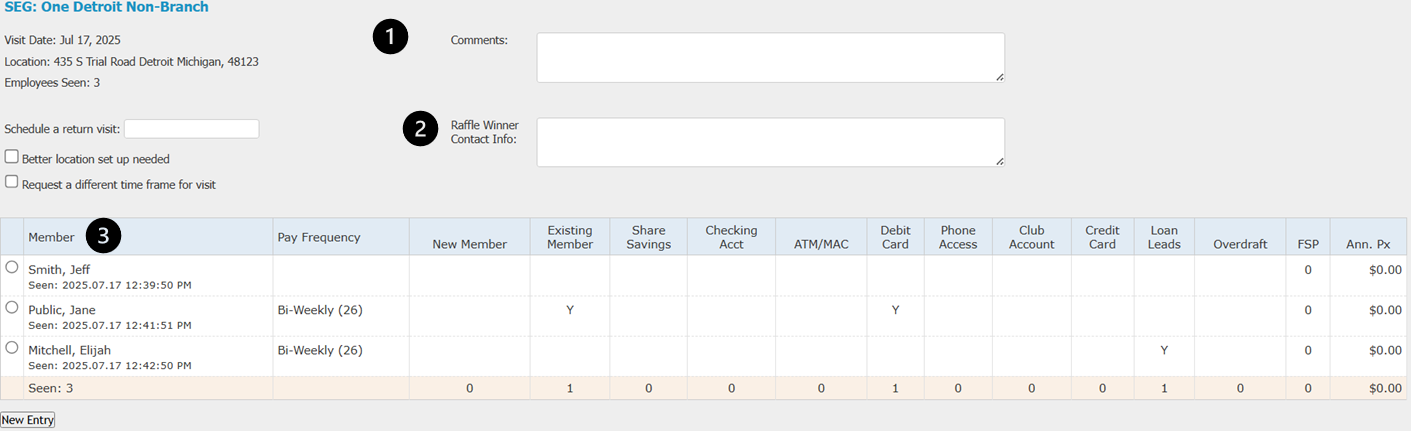
- Comments – Share feedback about the site/staff.
- Raffle Winner – Record winner details with contact info.
- Verify Info – Double-check all member information and premiums.
Step 5: Submit the log SAME DAY
Submit your log before leaving the SEG or at the end of your shift. Logs are only valid same day. If you submit the next day it will still flag it as a missing log report.
What Happens If You Don’t Submit
- Logs Merge: If you return the next few days, LG combines multiple days into one log.
- Wrong Dates: Creating a log late defaults to “today” instead of the actual visit date.
- No Credit: Sales, premiums, and leads may not tie back to your work, inaccurate reporting.
- Manual Fix: If the SEG log is not created, you MUST fill out the Excel SEG log backup and send it to Gloricel Fernandez (BD Manager) with your manager on copy. NO EXCEPTIONS.
- CU Relationship Risk: Missing logs can damage trust with our partners.
✨ Best Practices
- Always log during the visit using your company device.
- If offline (LG Disconnected), you can still create a log, sync and submit once online again.
- Never backdate in LG — use the Excel backup process if you miss it.
- Treat submission as part of your visit routine: If it’s not logged, it didn’t happen.